I've been looking forward to the X-Pro2, Fujifilm's flagship mirrorless camera, ever since switching over to the X Series 18 months ago. To understand why, you need to know a little about me. I've only really been taking cameras seriously for seven years. My first came in 2009, a slightly battered old Nikon D40. Three years, three Nikons (I upgraded twice) and three additional lenses (35mm, 40mm and 50mm fixed) later, I was tired of lugging around a giant camera, and even more tired of the small selection of good lenses available in my price range. I then tried out a mirrorless Sony camera, but Sony's lens selection at the time was pitiful if you weren't willing to spend big money.
It wasn't until an old colleague of mine showed me the Fujifilm X100T, a compact camera with a 35mm-equivalent fixed lens and an innovative viewfinder that's both electronic and optical, that I knew what I wanted. Within weeks I'd thrown my Sony in a drawer and bought an entry-level X-M1 and a pair of lenses to give Fujifilm a shot.
After an extremely successful trial run at CES 2015, I was convinced. All that was left to do was upgrade from the entry-level body to a model that did everything I wanted it to. I decided on an X-Pro1 -- despite a colleague advising me against it -- because it had the same viewfinder tech as the X100T I'd fallen in love with. The problem was, rumors suggested that a sequel, the X-Pro2, was just around the corner. So I waited.
And waited.
Fujifilm wouldn't announce the camera until January this year, and I didn't get a chance to touch one until last month. After all this time, was it worth the wait? On paper, the answer looked like a resounding yes: The X-Pro2 has an all-new third-generation X-Trans sensor, which ups the resolution considerably over the rest of the X Series, and a fresh image-processing unit (the "X-Processor Pro"). That means a 24.3-megapixel resolution and a native ISO limit of 12,800, a big upgrade from the previous cameras' 16.3-megapixel and ISO 6,400 limits. There's also an improved autofocusing system with phase detection -- not entirely new for the X Series, but new for the X-Pro.
Gallery: Fujifilm X-Pro2 sample images | 14 Photos


But before we really get into what the X-Pro2 is, let's quickly cover what it's not. The X-Pro2 is not a compact mirrorless camera. At 445g (0.98 pounds), it's only 10g (a third of an ounce) lighter than the D3100 I tossed aside four years ago. The X-Pro2 is also not a DSLR replacement. The company's X-T10 and X-T1 fill that niche, and the X-Pro2 is closer in shape to the Nikon SP and Leica M3 rangefinders popular in the '50s and '60s. Finally, the X-Pro 2 is not cheap. It's $1,700, which puts it in the same price range as Nikon's and Canon's ultra-high-end APS-C DSLRs like the 7D and D500, or, closer to home, Sony's superb full-frame mirrorless A7 II. None of these cameras are directly comparable to the X-Pro2, though, and that's because of Fujifilm's unique viewfinder.
Like the X-Pro1, and the X100T that sold me on Fujifilm in the first place, the X-Pro2 has a hybrid viewfinder that takes the best aspects of optical rangefinders and electronic viewfinders and mashes them into a single unit positioned in the top-left corner of the camera. In optical mode, it gives you a wide field of view and projects more information on top of it. Rather than showing you what your lens is seeing and its focus, you'll instead have a white box indicating the area your lens will cover. For a more practical example: If you have a zoom lens, this box changes sizes depending on what focal length you've chosen. Above and below this view you'll find the usual information you'd expect from a viewfinder. This is customizable, but I have it set to show shutter speed, aperture, ISO, exposure and battery.

Looking through the viewfinder, you see guidelines showing you framing, and an EVF preview of your finished shot in the corner.
The limitations of an optical viewfinder -- namely, not being able to see what you're focusing on -- are mitigated by a tiny electronic viewfinder that sits in the corner of the optical window. This can either show you the whole frame (like you'd see on a regular EVF) or a tight crop of what you're focusing on. The setup is a modern-day take on the rangefinding concept -- using two separate image guides to take a single photo -- and I relied on it fairly often when using my favorite Fujinon lens (a 35mm f/1.4). With a telephoto, though, you're going to feel limited, because the boxed-in area will be tiny. Because of this, when shooting with a zoom lens I ended up flicking the lever on the front of the X-Pro2 and turning the optical viewfinder into a full-blown EVF.
The regular EVF is nothing to write home about. At 0.48 inches and 2.36 million dots, it's bested by cheaper cameras from other companies and even Fujifilm itself. It's definitely solid, and it provides some vital flexibility to make up for the optical view's shortcomings. As explained, it's great for shooting with telephoto lenses. That's not something I do often, but even so, I found the EVF useful for navigating menus and viewing photos when shooting at night (i.e., when I didn't want the LCD on the back lighting my face like a Christmas tree). Likewise, the main LCD -- a 3-inch panel with 1.62 millions dots -- is good enough, but it's fixed in place. When the X-T, X-M and X-A series all offer tilting LCDs, you have to question why the X-Pro2 doesn't have one.

Shot at f/4.0, ISO 12,800, with a 18-55mm f/2.8-4.0 lens. A high-res shot can be found here.
One of these three themes -- fantastic, flexible and good enough -- can be applied to every facet of the X-Pro2. The new image sensor and processor are fantastic, with great JPG handling, color reproduction (aided by Fujifilm's "film simulation," which lets you choose from various processing options), and usable images even at ISO levels as high as 12,800. Fujifilm provided me with an 18-55mm zoom lens (f/2.8–4.0 with optical image stabilization), which has been around for a few years. It's remarkably sharp around 27–40mm -- far more so than your typical kit lens -- but as you'd expect suffers at the extremes of its range with softness and distortion. I ended up leaving it at home for the majority of my testing, mostly because I'm used to shooting at fixed focal lengths.
When I paired the X-Pro2 with lenses I'm familiar with, I was very pleased with the results, if not with the ease with which they were acquired. There are a pair of dials atop the camera, one a basic exposure (to ±3) control, the other a dual ISO/shutter speed control. The latter is very unintuitive -- I literally couldn't explain how it's supposed to work despite having used it extensively. On the front and back of the camera are wheels whose functions change depending on what mode you're in -- shutter, aperture ISO, etc. -- which I only really used for fine-grain control of shutter speed, as my lenses all have aperture dials. Elsewhere you'll find dedicated mechanical buttons for auto-exposure lock, autofocus lock and a three-point switch for jumping between autofocus modes. There's also a tiny joystick by the LCD on the back of the camera that lets you set a focal point with ease. It's great, and every Fujifilm camera from now on needs to have it.
The X-Pro2 handles well, and with the kit lens, or smaller lenses like the 27mm or 35mm fixed, it's very easy to maneuver and hold steady. Put a larger lens on it, though, and it suffers; the grip is a little too shallow for supporting the weight of a 55–200mm zoom, for example.

The offending/offensive dial.
Despite a vast range of physical controls at my disposal, I found the X-Pro2 lacking. The problem really is that ISO/shutter dial. The X-T10 (Fujifilm's DSLR-like camera) breaks out shutter speeds and ISO into two separate dials, as do countless other cameras. Why the company's flagship does not is a mystery. Luckily, the X-Pro2 has three customizable auto ISO settings, so I set them up in reasonably tight increments (200–800, 800–3,200, 3,200–12,800, respectively) and jumped between them on the fly using the Fn button. That suits my current shooting style (I typically use manual mode with limited auto ISO as a safety net), but it's still nowhere near as quick or intuitive as it should be. What I was hoping for from the X-Pro2 was granular mechanical control over every facet of the camera. What I got instead was an irritating compromise.
Speaking of, one major pain point for Fujifilm cameras has been video. I specifically have a cheap Canon DSLR just to shoot the one or two things I need to per year, because Fujifilm's video is so poor. While no one is buying an X-Pro2 for its video capability, I'm happy to report that it can actually shoot passable video now, at 1080p and 60fps. One for the "good enough" column, for sure.
Autofocus, another spotty area for the X Series, is vastly improved over previous Fujifilm cameras. The original X-Pro had precisely zero phase-detection pixels. That's something that's been rectified by more recent models, but the X-Pro2 has by far the most phase-detection pixels of any X Series camera, covering roughly 40 percent of the frame. That leads to a big real-world improvement in terms of both speed and accuracy, although it should be pointed out that the actual pace of focusing will depend on the lens you have in front of that sensor.
After a couple of weeks of shooting, I've taken some beautiful shots. In case my origin story didn't clue you in, I am very much an amateur. My framing can be poor, my depth of field too narrow, my shutter speed too slow. No camera will fix that. What I can say is that the photos I've taken with the X-Pro2 have been better than the photos I've taken with other Fujifilm cameras. And I've had a lot of fun shooting them. I probably shouldn't be advising you to visit a competing website, but I'd recommend checking out Sam Byford's sample gallery over at The Verge. He's a far better photographer than I am (and, not coincidentally, the aforementioned colleague who introduced me to the X Series in the first place).

Shot at f/4.5, ISO 2000, with a 35mm f/1.4 lens. A high-res shot can be found here.
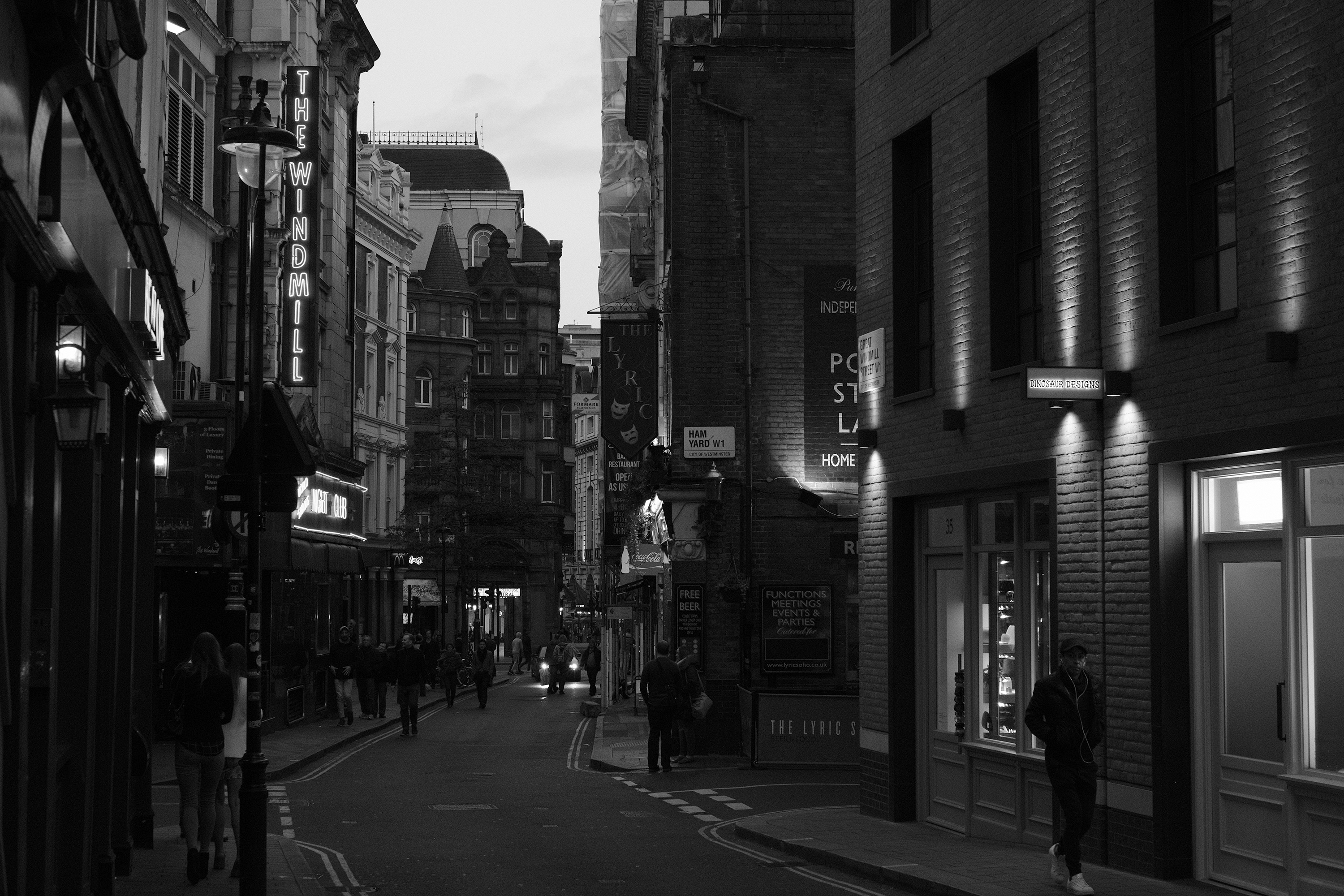
As great a time as I've had with it, I've come to the realization that the X-Pro2 is not what I want from a camera. And that sucks, especially after a year of waiting for it. Of course, I can't ignore the leaps forward it offers. Increased resolution without a dip in pixel-by-pixel quality, a native and usable ISO 12,800, improved autofocus, better JPEG rendering, a new film simulation mode (Acros, a black-and-white film, was used to capture the shot above), the new hybrid viewfinder -- these are all worthy and welcome improvements. But they're stuck inside a body that doesn't work that well as an everyday interchangeable-lens camera. That viewfinder, as flexible as it is, is much better suited to the company's fixed-lens offerings. The company's fantastic lens selection handles better attached to the DLSR-like X-T1 and X-T10.
But this sensor and processor will come to other Fujifilm cameras. And they'll be much, much better for it. As much fun as it's been to shoot with, and even though it's one of the best-performing cameras I've ever used, I'm not too sad to be saying goodbye to the X-Pro2. I am sad, though, to be stuck waiting again, this time for a refresh to another Fujifilm camera -- for, I guess, the "X-T2."